Manual: Create an account at Coinmerce
In this guide, we'll explain step-by-step how to create an account with Coinmerce and then transfer crypto from Coinmerce to your Ellipal. Follow all steps carefully.
Important: Use the code Cryptoken when registering or sign up via this link: https://coinmerce.io/r/cryptoken/ . Without the code or this link, you will miss out on a welcome bonus.
Step 1 – Create an account at Coinmerce
Click the button or link to create a Coinmerce account. Use the code Cryptoken during registration and take advantage of the welcome bonus.

Step 2 – Register account
Please fill in the requested information:
- Email address
- Strong password

Step 3 – Use the referral code
When you register, you will see a field for a referral code or promotional code.
Enter Cryptoken here.
This activates the welcome bonus. If you registered using the button or link, the code will be applied automatically. If you skip this step without using the link, you will not receive the bonus.
Step 4 – Confirm email address
After registering, you will receive an email from Coinmerce.
- Open this email
- Click on the confirmation link
Step 5 – Verify bank details (transfer 1 cent)
To link your bank account, Coinmerce asks you to make a verification payment of 1 cent.
This is how it works:
- You transfer €0.01 from your own bank account
- Coinmerce uses this payment to check whether the bank account is yours
- The name on the bank account must match your account

Step 6 – Verify Identity (ID Verification)
After verifying your bank details, you will need to verify your identity.
This usually consists of:
- Filling in personal data
- Uploading a valid ID
- Possibly a selfie for checking
Step 7 – Account is ready to use
After approval of your bank and ID verification, your account is fully active.
You can now:
- Buy and sell crypto
- Deposit money
- Take advantage of the welcome bonus (provided Cryptoken has been used)
- Congratulations, your Coinmerce account has been successfully created!
How to Transfer Crypto from Coinmerce to Ellipal Titan & Mini
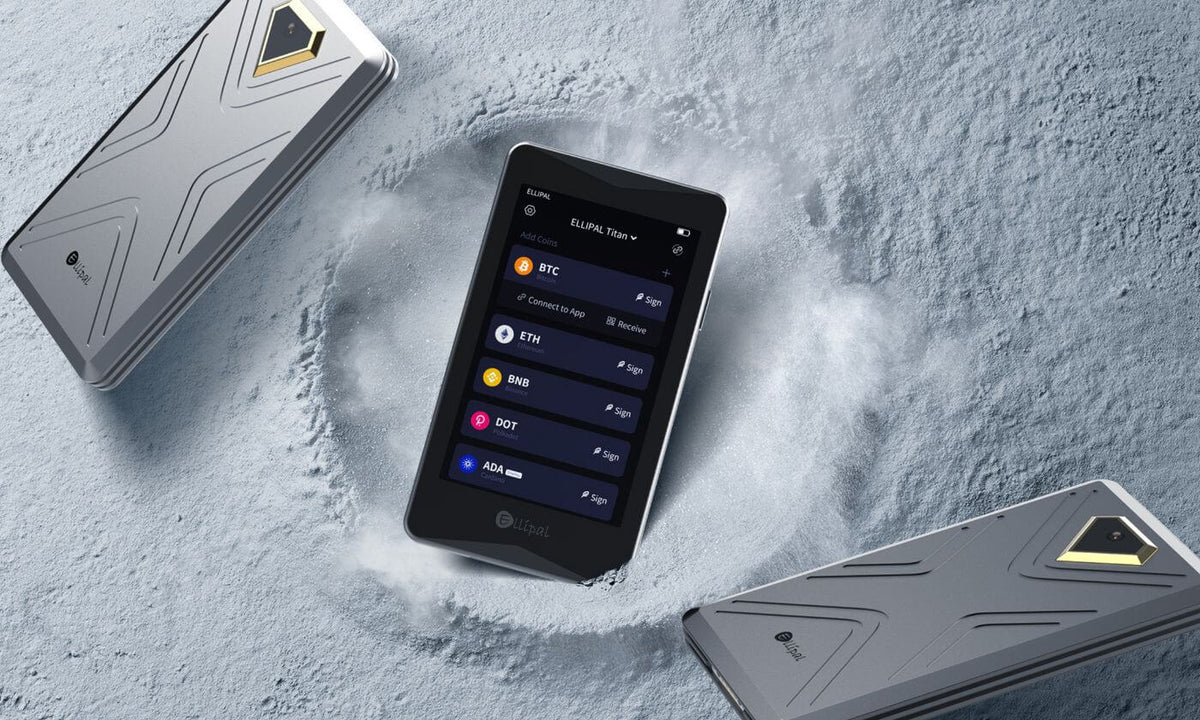
Step 1 – Install and configure Ellipal wallet
Make sure your Ellipal Titan or Mini is ready to use:
- Download the Ellipal App on your smartphone (Android or iOS)

- Put your Ellipal Titan or Mini on the charger otherwise it may stop working halfway through the installation
- Click on: Create new wallet on your ellipal
- Set up an account name and password on your Ellipal device
- Record and store your recovery seed safely and offline
- Select the coins you want to transfer (you can change this later)
Make sure you never save this recovery phrase digitally or share it with anyone.
Step 2 – Link Wallet to the Ellipal App
- Open the Ellipal App on your phone

- Click on the icon in the top right corner on the ellipal 2.0/mini itself

- Check which wallet you have and click on it, in this case Titan 2.0 / Mini

- Scan the QR code displayed on your Ellipal Titan or Mini
- The wallet is now linked to the app
The Ellipal wallets are fully air-gapped , meaning they do not connect with cables or Bluetooth.
Step 3 – Retrieve the receiving address in the Ellipal App
- Open the Ellipal App
- Click on Receive

- Select the crypto you want to receive (e.g. Bitcoin or Ethereum)

- Copy the receiving address or use the QR code

- Check the address on your Ellipal device and in the app to see if they match
You need this address to send the crypto from Coinmerce.
Step 4 – Log in to Coinmerce
- Log in to your Coinmerce account
- Go to your wallet or portfolio
- Select the crypto you want to transfer
Step 5 – Send crypto from Coinmerce
- Click on Record or Send

- Enter the amount you want to transfer
- If you have not used your wallet on Coinmerce before, you will need to create a new wallet

- Paste the receiving address of your Ledger, you must make counterparty unknown

- Wallet type: Unhosted

- Then follow the steps to verify your wallet
- Check if the network is correct
Note: Always carefully check the address and network. An incorrect address or network could result in the loss of your crypto.
Step 6 – Confirm transaction
- Confirm the transaction within Coinmerce
- Complete any additional security steps
After confirmation, the transaction is processed on the blockchain.
Step 7 – Check receipt on Ellipal
- Open the Ellipal app
- Go to the account in question
- Wait for the transaction to be visible

Depending on the crypto and network, this can take from several minutes to longer.
Step 8 – Crypto Stored Safely
Once the transaction is confirmed, your crypto is safely stored on your Ellipal Titan or Mini.
Important:
- Never share your recovery phrase
- Keep your Ellipal device and PIN code safe
- Always check addresses and networks when sending
You have now successfully transferred crypto from Coinmerce to your Ellipal Titan or Mini.