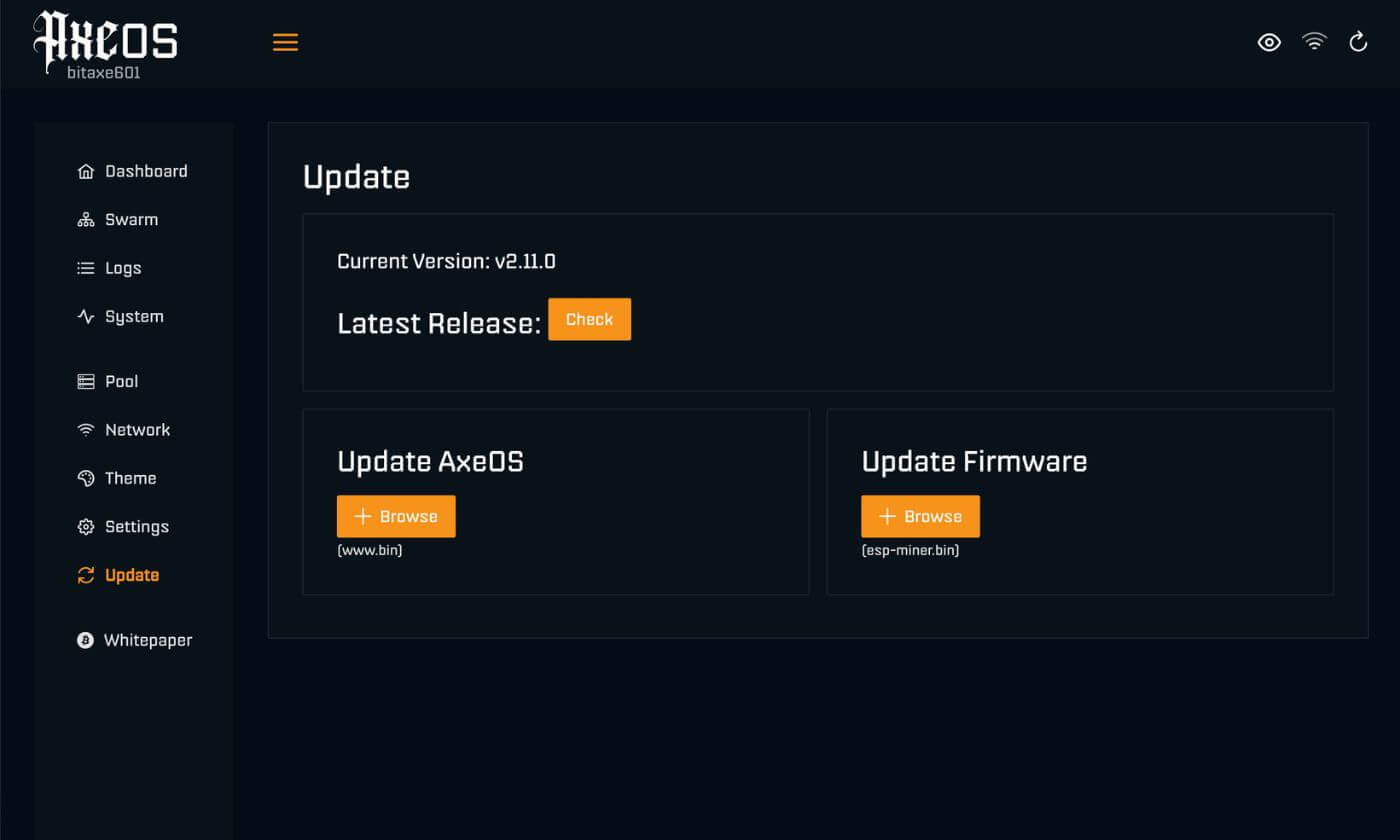
In this guide, we'll explain how to update your NerdQaxe, NerdMiner, or Bitaxe via the web interface (the easiest way). If this isn't successful or the device isn't responding, we'll also show you how to restore the miner using the ESP Tool, for both NerdQaxe, NerdMiner, and Bitaxe.
Method 1: Update via the website (recommended)
Step 1: Find your miner's IP address
The IP address of your NerdQaxe, NerdMiner, or Bitaxe is displayed on the device's screen by default.
Search for an address in this format:
192.168.1.45
Enter this IP address in your browser to open the web interface. If the screen doesn't work, you can also find the IP address using your router or a network scanner like Fing or Angry IP Scanner.
Step 2: Update firmware via the web interface
1. Go to Settings or update

2. Scroll down and check if an update is available

3. Click on the firmware you need to download it to your computer or phone

4. Click Browse and select the file you just downloaded

5. Click Flash to start the update
The update is now in progress. Do not interrupt this process or close your browser. The miner will restart automatically.
Step 3: Check after update
After restarting, check:
- Firmware version
- Hashrate
- Temperature
- Pool connection
If everything runs correctly, the update was successful
Method 2: Update via ESP Tool (if the web interface doesn't work)
When:
- The web interface is not accessible
- The miner gets stuck
- The update failed.
Use the ESP Tool to reflash the firmware: https://espressif.github.io/esptool-js/
Preparation
- USB cable
- Computer
- Firmware file (.bin)
- ESP Tool website
Connect your miner to your computer via USB.
Step 2: Connect your miner (NerdQaxe, NerdMiner or Bitaxe)
- Turn off your miner and connect it to your computer via USB Type-C.
- Enable the miner. Open the ESP Tool – do NOT change the default settings.
- Click "Connect" and select the correct port. Wait until the "Connected to device" status appears.
Step 3: Flashing firmware
- Enter a “0” (number zero, no letter o) in the Flash Address field.
- Select your downloaded .bin file.
- Click "Program" and wait patiently – completion will be confirmed when the line "Hard resetting via RTS pin" appears.
Step 4: Check recovery
- Click "Disconnect" and restart the miner.
- Check the startup with factory settings. If everything works: Congratulations! Your miner has been repaired.
Key points
- Firmware check: Always check that the firmware is compatible with your model. Incorrect firmware can cause permanent damage.
- Backup: Back up important data – flashing will erase all content.
- USB Cable Quality: Use a reliable cable to avoid interruptions during flashing.
Tips for safe updating
- Always use stable firmware
- Take screenshots of settings
Conclusion
Updating your NerdQaxe, NerdMiner, or Bitaxe safely is easy via the web interface. If that doesn't work, use the ESP Tool for recovery. By choosing stable firmware and working carefully, you'll prevent problems and get the most out of your miner.