Step-by-step installation guide
Preparation
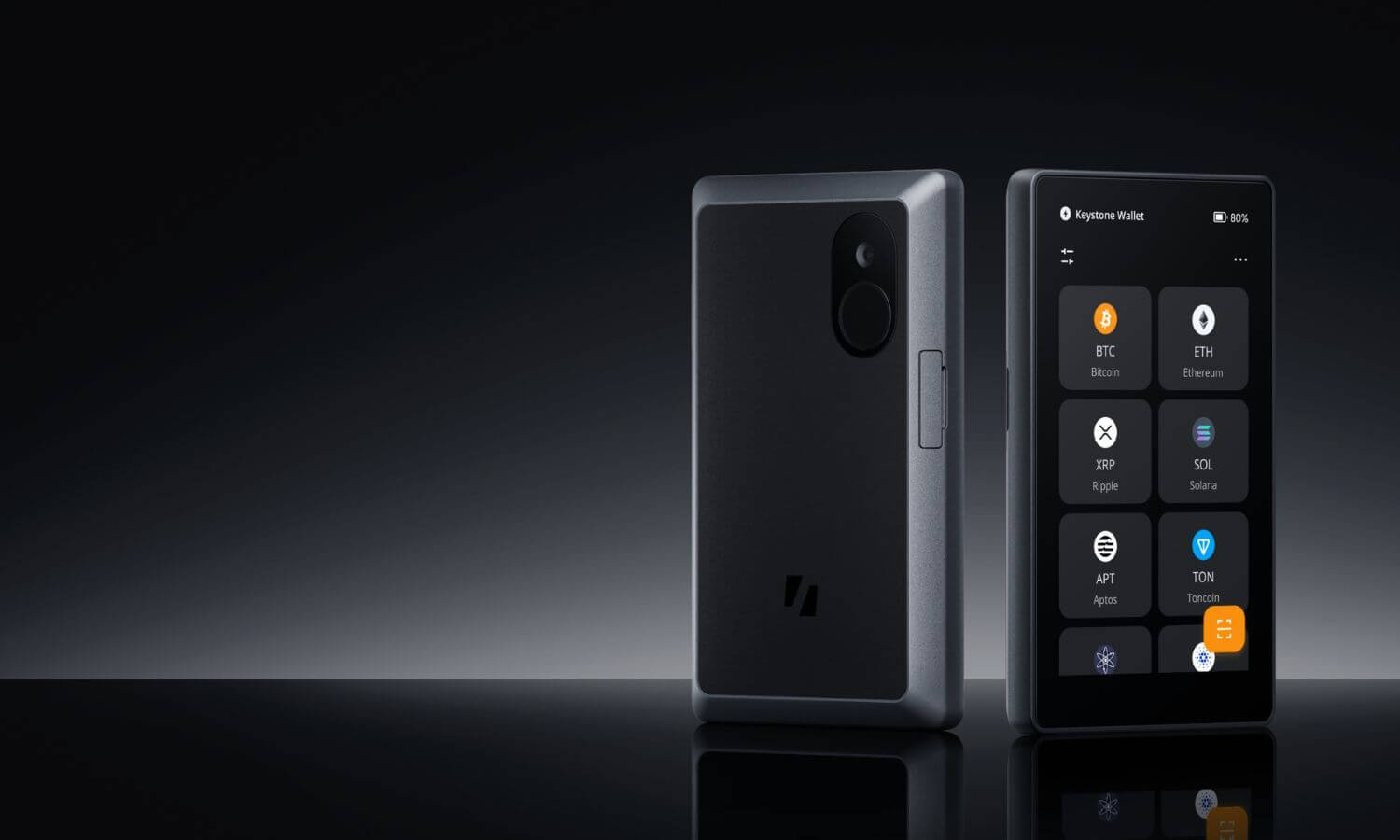
1. A Keystone 3 Pro or Keystone 3.
2. Battery Level: Make sure your device has a battery level of more than 20%.
3. USB cable or SD card :
- USB cable for firmware update (included).
- Micro SD card (less than 1 TB) for upgrades (sold separately).
4. PC access to the official Keystone website for verification and firmware updates.
Choose your language

Device verification (optional)
Device authentication is crucial for detecting potential infection during transport, preventing attacks, and ensuring the security of installed firmware.
Device verification via QR Code
1. Visit the Device Verification page on the Keystone website.
2. Click "Scan QR Code" on the official website.
3. Use your Keystone camera to scan the QR code shown on the website. A verification code will appear on your Keystone screen.
4. Enter this code on the website to complete the verification process.

Create or Import Wallet - Seed Phrase
Secure password:

Give your Wallet a name (optional):
Guard your Seed Phrase like a treasure: Your Seed Phrase is the key to your funds. Consider it your most valuable asset and handle it with the utmost care to protect your assets.
1. Write it down : Put your seed phrase on a paper backup sheet or use a seed phrase backup for extra protection against fire and rust. See the official backup for the Keystone 3 Pro: Keystone Tablet .
2. Keep it private : Don't share it with anyone and avoid contacting your Seed Phrase online.
3. Stay Offline : Save your seed phrase offline to prevent unauthorized access. Avoid importing online-generated seed phrases into Keystone, as these are already exposed to online risks.
New user? Create a wallet:
1. Select "Create New Wallet" if this is your first time creating a Wallet.
2. Your device generates a Seed Phrase of 24 words.
3. Write this code phrase down and keep it safe.
4. Confirm the Seed Phrase by putting the words in the correct order on the screen.

Already have a Keystone Seed Phrase? Import your wallet:
1. To minimize online risks, don't import online-generated seed phrases into Keystone. Instead, create a new seed phrase on Keystone.
2. If you have the Seed Phrase of a compatible Wallet, select "Import Wallet".
3. Enter your existing Seed Phrase using the on-screen keyboard.
4. Confirm the Seed Phrase to import your existing Wallet.

Select the desired Software for your Wallet (multiple selections)
Optimize your digital asset management with the right wallet software. Here's a list of some recommendations:
- OKX Wallet (Extension & Mobile) : Use this app to manage BTC and EVM tokens. We are expanding support for additional chains, aiming for an all-in-one solution.
- BlueWallet (Mobile) : Ideal for BTC with features like Native Segwit, Nested Segwit, Legacy, coin control, Tor and more.
- MetaMask (Extension & Mobile) : Reliable wallet for EVM tokens such as ETH, AVAX, and BNB.
- BlockWallet Rabby (Extension) : Recommended for EVM tokens such as ETH, AVAX, and BNB.
- Safe ( Extension & Mobile ): Enables the use/creation of multi-sig EVM chain wallet.
See Keystone's "Supported Assets and Wallets" page for compatible options.
Connecting the Keystone 3 Pro to your chosen software (e.g. OKX Wallet):
1. Download the App : Download OKX Wallet from the App Store or the official website.
2. On the Keystone device : Tap […] on the main page > Tap [Connect Software Wallet] and select [OKX Wallet]. The QR code for connecting to OKX Wallet will appear.

3. On OKX Wallet Mobile :
- Open the OKX Wallet and select "I already have one".
- Select "Hardware Wallet" and then select "Keystone".

- Tap [Scan to connect] and carefully follow the instructions. Then tap [Connect now].

- Give the "OKX" app permission to access your camera and scan the QR code on your Keystone hardware wallet. Select an account to unlock it.

- Once you connect your Keystone Wallet to OKX Wallet, you can securely explore its various features.
Currently, you can use the OKX wallet to access BTC and ETH once you've connected your Keystone. OKX is also working on adding more coins, so stay tuned for updates!
Congratulations! Your device is now set up and ready to use. Remember to store your Seed Phrase safely and never share it with anyone to ensure the security of your funds.