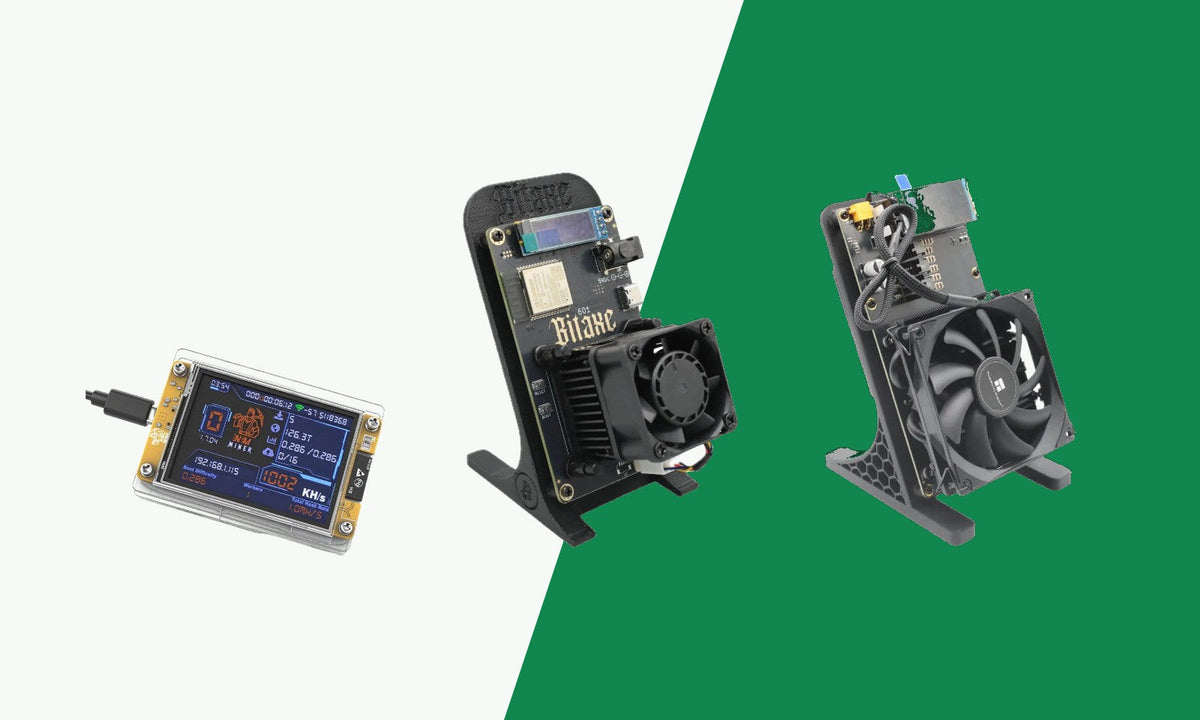
Your new miner has arrived. Great! This guide walks you step by step through connecting a Bitaxe, NerdQaxe or NerdMiner, getting it onto your Wi-Fi and setting your own Bitcoin address. Your miner ships with the firmware already installed. The firmware version and the pool settings it comes with can differ from device to device, so always check the pool fields yourself and fill them in.
Want to update your miner later on? Read how to update your NerdQaxe, NerdMiner or Bitaxe.
What you need
- Your miner and its power supply. The Nerdminer V2 and the Nerdminer V2 Solo Miner do not come with an adapter: you connect them with the USB-C cable to a computer or a standard USB adapter. The product page lists exactly what is in the box.
- A phone or computer with Wi-Fi.
- The name and password of your own Wi-Fi network.
- Your own Bitcoin address. This is where any reward will be sent. You can find it in your Bitcoin wallet.
- The details of the pool you want to mine with: the host (the pool's address) and the port. You will find these on the pool's website.
Installing a Bitaxe
A Bitaxe runs the open-source ESP-Miner firmware with the AxeOS web interface. This applies, for example, to the Bitaxe Gamma 601. You will find all models in the Bitaxe collection.
Step 1: Connect
- Does your Bitaxe have a fan? We have already fitted it for you. There is nothing to assemble.
- Connect the power supply to your Bitaxe and plug it into the wall socket.
- The Bitaxe boots up automatically.
- On first boot, the Bitaxe creates its own Wi-Fi network. You can see its name on the small display, under Setup Wi-Fi. The name looks like
Bitaxe_followed by four characters, for exampleBitaxe_1A2B.

Step 2: Connect to your Wi-Fi
- Open the Wi-Fi settings on your phone or computer.
- Select the
Bitaxe_XXXXnetwork. This network has no password. - The AxeOS setup page should open automatically. If it doesn't, open your browser.
- Under Wi-Fi SSID, enter the name of your own Wi-Fi network.
- Under Wi-Fi Password, enter your Wi-Fi password.
- Click Save and then Restart.
The Bitaxe restarts and connects to your own network.

Step 3: Open AxeOS
- Switch your phone or computer back to your own Wi-Fi network. You need to be on the same network as the miner.
- After the restart, the Bitaxe shows its IP address on the display, under IP Address. It looks something like this:
192.168.1.45. - Type this IP address into your browser's address bar. You will now see the AxeOS dashboard.
If your network supports mDNS, http://bitaxe will often work too.
Step 4: Set the pool and your Bitcoin address
- Click Pool in the menu.
- Check Stratum Host and Stratum Port. Enter the host and port of the pool you want to use. Is something already filled in? Make sure it is the pool you want.
- Under User, enter your own Bitcoin address. Is there already an address that isn't yours? Replace it. You can add a dot and a name for your miner after it, for example
yourbitcoinaddress.bitaxe. - In the Password field you can enter anything you like, such as 'x'.
- Click Save. If AxeOS asks for a restart, click Restart.

Installing a NerdQaxe, NerdAxe, NerdOctaxe or NerdQX
The NerdQaxe runs its own version of ESP-Miner with AxeOS. That means it works almost the same as a Bitaxe, but a few names are different. These steps apply to the NerdQaxe++, the NerdQaxe++ Rev7 models (NerdQaxe Rev7 Air-Cooled 6 TH/s and NerdQaxe Hydro Rev7), the NerdAxe Gamma 601, the NerdOctaxe (NerdOctaxe, NerdOctaxe Rev3.1 and NerdOctaxeY Hydro Rev3.1 13.8T) and the NerdQX 8T. Wherever it says NerdQaxe below, the same applies to these models. You will find all models in the NerdQaxe collection.
Step 1: Connect
- Does your NerdQaxe have a fan? We have already fitted it for you. There is nothing to assemble.
- Connect the included power supply to your NerdQaxe and plug it into the wall socket.
- The NerdQaxe boots up automatically.
- On first boot, it creates its own Wi-Fi network. Note: this network is called
Nerdaxe_followed by four characters, not "NerdQaxe".
Step 2: Set up Wi-Fi and the pool
- Connect your phone or computer to the
Nerdaxe_XXXXnetwork. This network has no password. - The web interface should open automatically. If it doesn't, open your browser.
- Go to Settings.
- Under WiFi Settings, enter your own network name in WiFi Network (SSID). You can also click Scan WiFi.
- Under WiFi Password, enter your Wi-Fi password.
- Under Pool Settings, check the Stratum Host and Stratum Port fields. Enter the host and port of the pool you want to use.
- Under Username, enter your own Bitcoin address. Important: is there already an address that isn't yours? Replace it with your own Bitcoin address. Otherwise your miner won't be mining for you.
- You can leave the Password field empty or keep the value that is already there.
- Click Save and then Restart. Changes only take effect after a restart.
Step 3: Open the web interface
- Switch your phone or computer back to your own Wi-Fi network.
- Read the IP address from the NerdQaxe's display.
- Type this IP address into your browser. You will now see the dashboard.
Installing a NerdMiner
A NerdMiner works differently. It doesn't have a web interface like AxeOS. You set everything up on a single configuration page. The field names can vary slightly depending on the model and firmware. This covers, for example, the Nerdminer V2 and the Nerdminer V2 Solo Miner.
Step 1: Connect
- Connect the NerdMiner to power. The Nerdminer V2 and the Nerdminer V2 Solo Miner do not come with an adapter: you connect them with the USB-C cable to a computer or a standard USB adapter.
- The NerdMiner boots up automatically and broadcasts its own Wi-Fi network.
Step 2: Set it up
- Open the Wi-Fi settings on your phone or computer and connect to the network the NerdMiner is broadcasting. Asked for a password? You will find it in the manufacturer's manual.
- The configuration page opens. If it doesn't, open your browser.
- Select your own Wi-Fi network and enter your Wi-Fi password.
- Check the pool fields (the address and the port). Enter the details of the pool you want to use.
- Enter your own Bitcoin address. Is there already an address that isn't yours? Replace it. Without your own address, the NerdMiner won't be mining for you.
- Does the configuration page ask for a time zone? Enter the offset from UTC. In the UK that is 0 in winter and 1 in summer; in most of Western Europe it is 1 in winter and 2 in summer.
- Save the settings. The NerdMiner restarts and connects to your Wi-Fi.
Want to change something later? Put the NerdMiner back into setup mode, usually with a button on the device. How this works differs per model, so check the manufacturer's manual.
Check that your miner is working
Give your miner a few minutes. Then look at the dashboard (Bitaxe and NerdQaxe) or the display (NerdMiner):
- Hashrate: it shows a value that doesn't stay at zero.
- Shares: the number of accepted shares keeps going up.
- Temperature: on the Bitaxe this is called ASIC Temperature, on the NerdQaxe Temperature.
- Pool: the dashboard shows which pool the miner is connected to. Check that it is the pool you entered.
See all of this? Then your miner is installed correctly.

Not working?
- The web interface won't open: check that your phone or computer is on the same network as the miner.
- The miner can't find your Wi-Fi: several miners only work with 2.4 GHz Wi-Fi. The product page tells you what your model supports.
- Wi-Fi works, but no hashrate: some routers block mining, for example certain ASUS and TP-Link routers. Turn off the AiProtection and IoT features in your router if it has them.
-
Entered a host yourself? In Stratum Host, enter only the name, without
stratum+tcp://and without the port. The port goes in Stratum Port. - The miner doesn't respond at all anymore: our update guide explains how to reflash the firmware with the ESP Tool.
Still stuck? Get in touch with us or book a Cryptoken Expert session.
Frequently asked questions
Which pool is set by default?
That can differ per device and per firmware version. So always check the pool fields yourself and enter the host and port of the pool you want to use. Want to solo mine? Then choose a solo pool. If your miner finds a block, the reward goes to your Bitcoin address.
Can I also solo mine via CKPool?
Yes, with a Bitaxe or NerdQaxe. Enter stratum.ckpool.org in Stratum Host and 3333 in Stratum Port. Under User or Username, enter your Bitcoin address. You can leave the password empty or keep the value that is already there: CKPool doesn't use the password. We don't recommend this for a NerdMiner: the NerdMiner_v2 firmware documentation says CKPool is not suitable for the low share difficulty of a NerdMiner.
What do I enter as the pool password?
You can leave the field empty or keep the value that is already there. If your pool says a password is required, follow the pool's instructions.
What are my chances of finding a block?
Small. Solo mining works like a lottery. Read more in what are the chances of mining a Bitcoin block with hobby miners?
Do I still need to flash my miner?
No. Your miner ships with the firmware already installed. Want to move to new firmware later? Read how to update your miner.